
Waitlist History
Easily check recently served customers
History is a short-term record of the parties that have left your active Waitlist or ETA list. Instead of disappearing, they move to History, where staff can look them up and bring them back if needed.
A party moves to History in one of three ways:
- Served: staff seats the party or checks it off.
- Removed: staff removes the party by hand.
- Auto removed: the party is still on the list when your Auto Removed time is reached, so the system removes it.
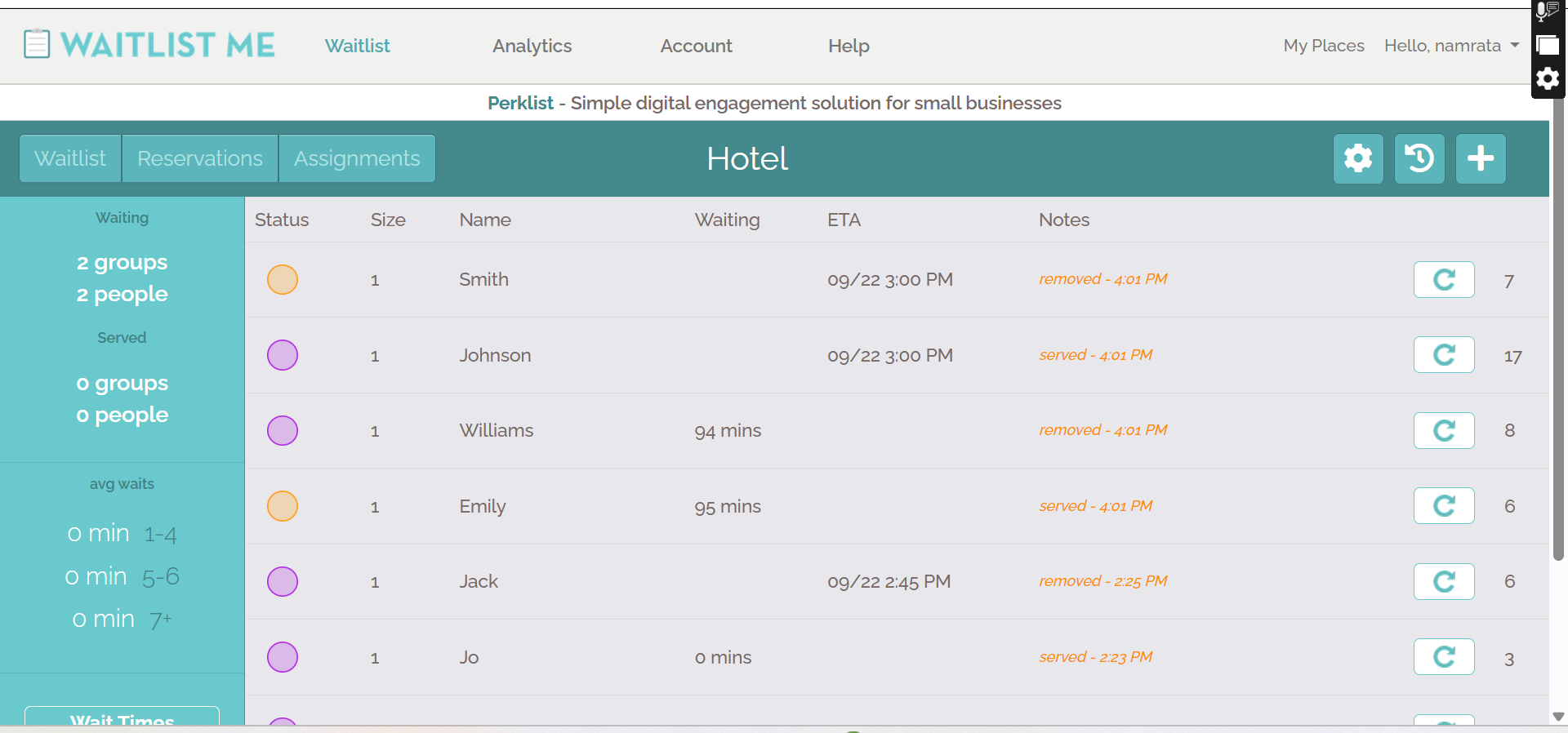
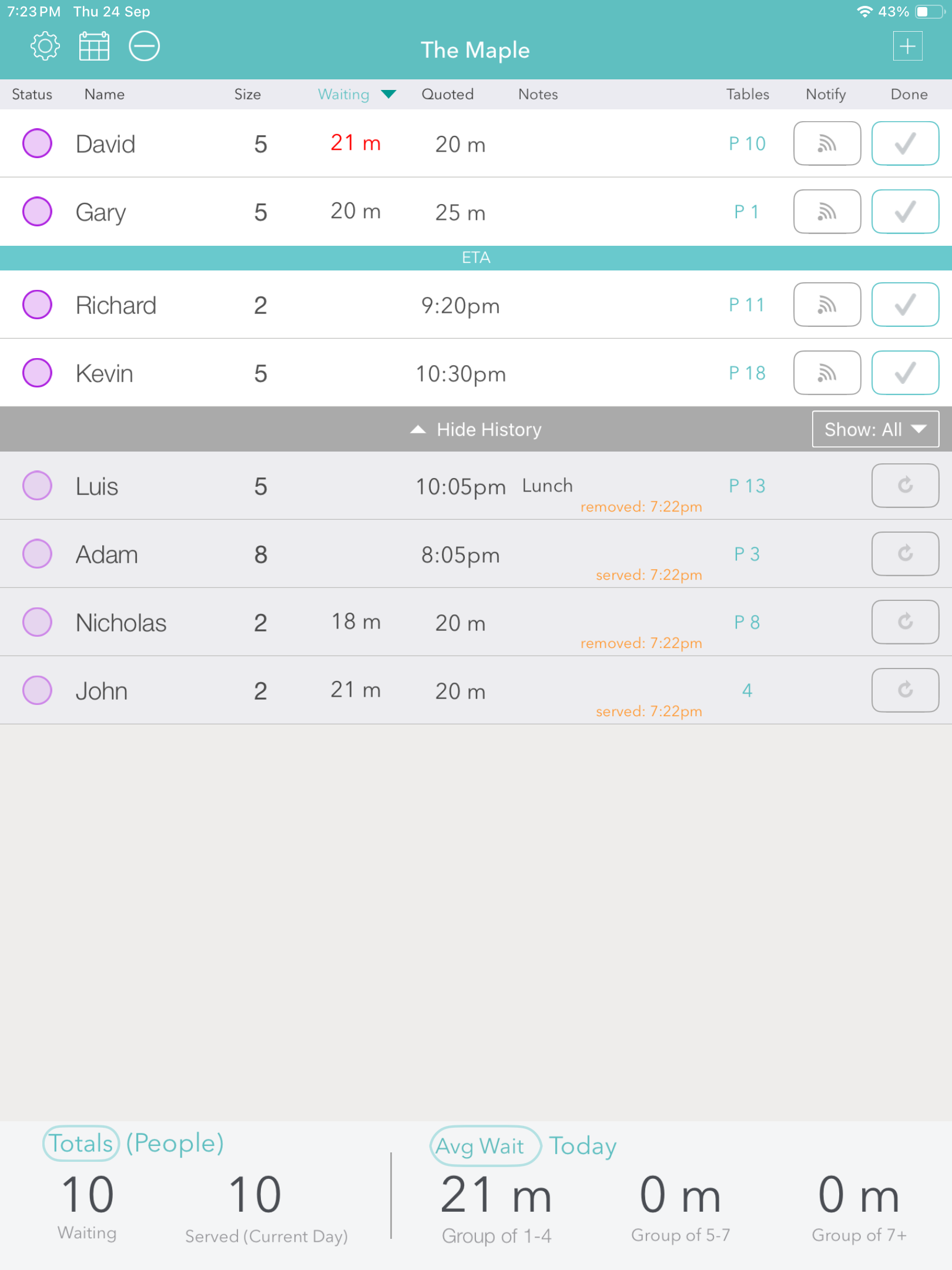
Each History entry shows the party's name, size, wait or ETA details, assigned table, and how and when it left the list (for example, "served - 4:01 PM"). A Re-add button puts the party back on the active Waitlist.
Benefits
- A cleaner active list. Finished parties move out of the way, so staff see only who is still waiting.
- Quick answers about recent parties. Staff can confirm whether a party was served, removed by hand, or auto removed, and at what time.
- Easy fixes. A party removed or checked off by mistake can be re-added in one tap.
- No side notes. Recent activity is recorded automatically, so staff do not need to track removals separately.
- A longer look back on higher plans. Pro and Platinum accounts can keep parties in History for up to 7 days.
The views
Web app
On the web, History is its own view, opened from the title bar. Each row shows the party's details, its final status in the Notes column, and a Re-add button.
Tablet
On a tablet, History sits on the same screen as the Waitlist, directly below the active and ETA parties. A grey bar lets staff show or hide it.
Phone
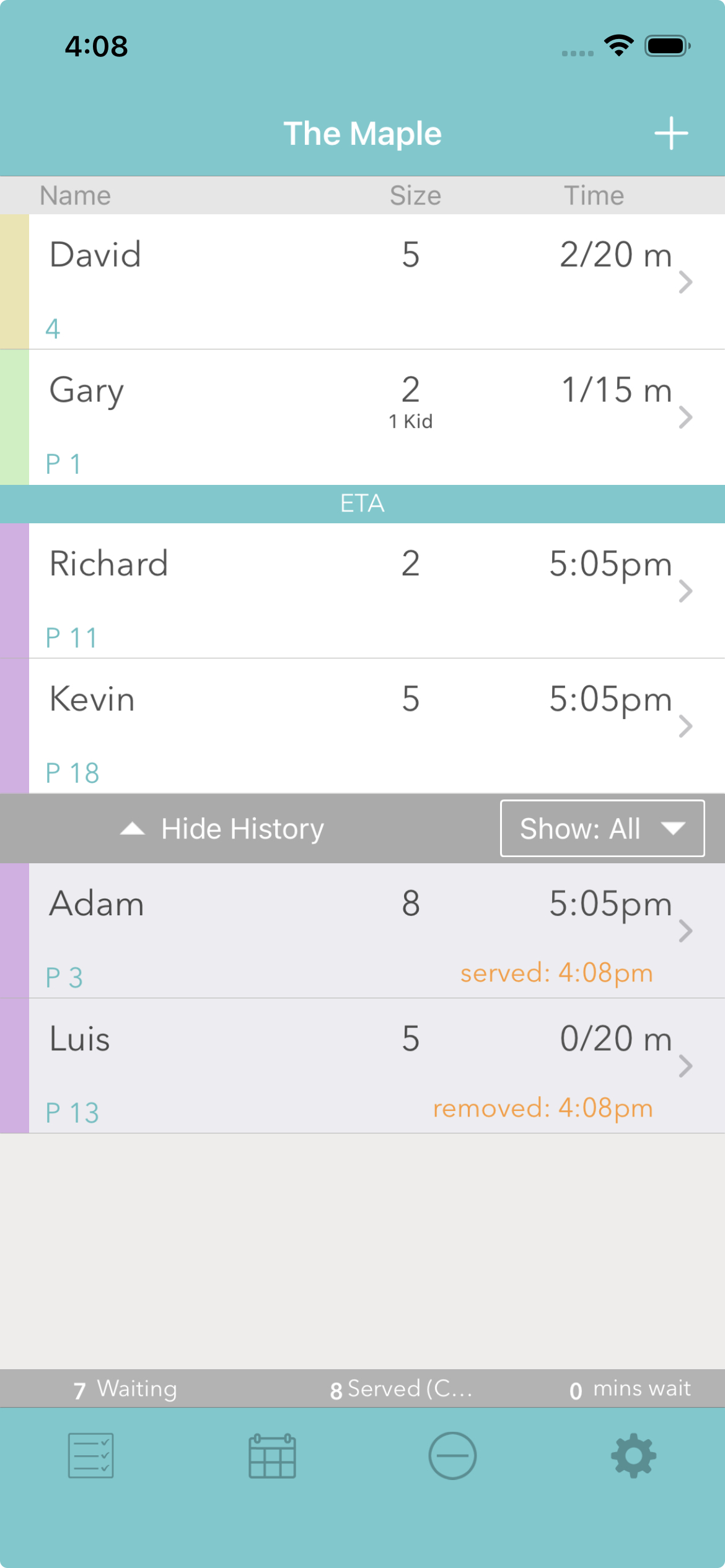
The phone uses the same layout as the tablet in a more compact form: History appears below the active parties, with the status and time on each entry.
Settings
History has one setting: how long parties stay in it. In the mobile app, go to Settings → Customization → Waitlist View and tap History to pick a duration. The choices depend on your plan:
- Free and Premium: Current Day or 24 hours
- Pro and Platinum: Current Day, or 1 to 7 days

How the duration is counted:
- The clock starts when a party enters History, not when it first joined the Waitlist.
- Current Day clears a party at midnight at the end of the day.
- For the other options, a party stays for the full period and is then cleared at the next midnight, not at the exact hour. With 1 day selected, a party that enters History at 11:41 AM on October 14 stays through all of October 15 and is cleared at midnight as October 16 begins.
One related setting lives outside History: your Auto Removed time decides when a party that was never served or removed is moved to History automatically.
Web vs. mobile
The feature records the same events and shows the same information everywhere. What differs is where History lives and how the duration is set.
On the web app
- History is a separate view.
- Pro and Platinum accounts open it with the History icon on the right of the title bar. Free and Premium accounts open it with the History tab on the left, next to Waitlist.
- Parties stay for 7 days from the time they enter History.
On the mobile app (phone and tablet)
- History sits on the Waitlist screen, below the active parties.
- Tap the Show History / Hide History bar to open or close it.
- Parties stay for the duration chosen in Waitlist View settings, within your plan's options.
On both, each entry has a Re-add button to return the party to the active Waitlist.