
Availability and Priority | Advanced Scheduling
Automatically manage which tables are available and the order they are automatically assigned
Availability and Priority gives restaurant managers complete control over which tables customers can book online and determines the order in which tables are assigned automatically. Whether you want to protect premium seating for VIP customers, fill tables strategically, or manage capacity during peak hours, this feature works seamlessly with your existing scheduling rules to optimize your restaurant's performance.
Executive Summary
The Availability and Priority feature empowers business users to control which tables are visible and available for customer self-service reservations, and to establish intelligent prioritization rules for automatic table assignment.
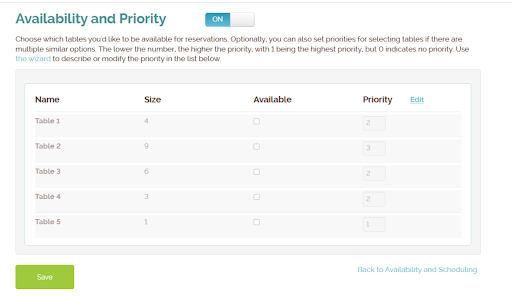
When customers schedule their own reservations through the self-service booking interface, only tables marked as "available" will be auto assigned. Additionally, when multiple suitable tables exist for a reservation, the priority system determines which table gets assigned first, enabling restaurants to either fill popular tables first or reserve them for specific request scenarios.
How Availability Works
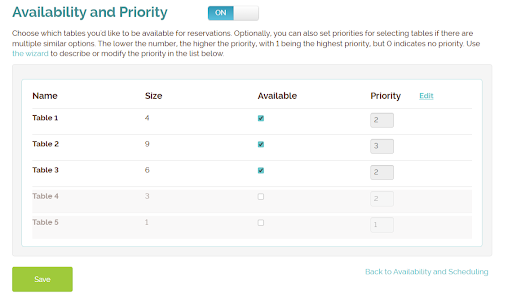
Availability is the ability to mark tables as available or unavailable for customer self-service reservations. When a table is marked as available, it is eligible for automatic assignment. When a table is marked unavailable, it won’t be available for auto assignment for self scheduling requests—but managers can still manually assign reservations to unavailable tables when needed. You might only want some tables to be available for self-scheduling to restrict how many options are available. Also, marking tables as unavailable can be used to keep specific tables or areas free for special guests or manual scheduling.
How Priority Works
Priority is a numerical ranking system that determines which available table gets assigned first when the system automatically assigns a table for a reservation and there are multiple options available. Priority 1 is the highest priority and will be assigned first. Priorities of value greater than 1 will be assigned in ascending order. Priority 0 means "No priority" and these tables are only assigned if no prioritized tables are available.
When the system needs to assign a table for an automatic reservation, it follows this process:
- Identify Eligible Tables – Filter all available tables that meet reservation requirements (party size, time, duration)
- Apply Priority Ranking – Sort eligible tables by priority number
- Assign First Available – Reserve the highest priority table that has no conflicts
- Fallback Logic – If all high-priority tables are booked, move to next priority tier
Example Real-World Scenarios and Use Cases
Scenario 1: Restaurant with VIP Section
Business Goal: Fill standard tables first; reserve VIP tables for customers who specifically request them. The tables are setup like this:
- Standard Dining Tables (1–20): Available, Priority 1–2
- VIP Corner Tables (21–24): Available, Priority 0 (no priority)
What Happens: A customer searches for a reservation for 4 people on Friday at 7 PM. The system assigns from standard tables first (Priority 1–2). If all standard tables are booked and the customer searches again, VIP tables now appear as fallback.
Scenario 2: Reserve Section for Private Events or Manual Scheduling
Business Goal: Block off one section; manage bookings in remaining open areas. The tables are setup like:
- Open Section A (Tables 1–12): Available, Priority 1
- Open Section B (Tables 13–24): Available, Priority 2
- Renovation Section C (Tables 25–32): Unavailable, No Priority
What Happens: Section A and B tables are the only ones available for auto assignment. Section C tables are completely hidden. Automatic assignments prioritize Section A (for staffing advantage). Section B fills after Section A reaches capacity. System cannot accidentally book closed section and efficiently manages filling up Section A before B.
Scenario 3: Even Distribution Strategy
Business Goal: Spread customers evenly across dining space for better ambiance or balancing workloads across sections. The tables are setup like:
- The Left Section contains tabled 1-3 and the right section contains tables 4-6
- Table 1: Available, Priority 1
- Table 4: Available, Priority 2
- Table 2: Available, Priority 3
- Table 5: Available, Priority 4
- Table 3: Available, Priority 5
- Table 6: Available, Priority 6
What Happens: The first table assigned is table 1 in the Left Section and the second table assigned is table 4 in the right section, and the pattern continues alternating sides as it goes through the priority. The result is an even customer distribution with reduced overloading in single area creating an improved dining experience.
Configuration & Setup
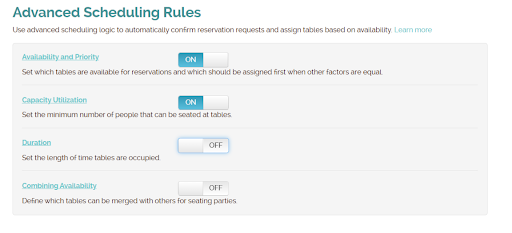
- Navigation Path - Log into the Waitlist Me Website and go to: Account → Settings → Add Yourself → Availability and Scheduling → Advanced Scheduling Rules → Availability and Priority
- View All Tables – The system displays a complete list of all restaurant tables with current availability status and priority assignment.
- Select Availability Status – Toggle each table between "Available" and "Unavailable". Bulk actions available for multiple tables.
- Set Priority Values – Assign priority numbers (0–9) to each table. Visual indicators show priority hierarchy. You can also use the bulk update capability to modify multiple tables at once, such as "Set tables 1 through 10 to priority 1" or "Reset all tables to priority 0"
- Review & Apply – Preview configuration changes and see summary of availability and priority settings.